Buying vehicles
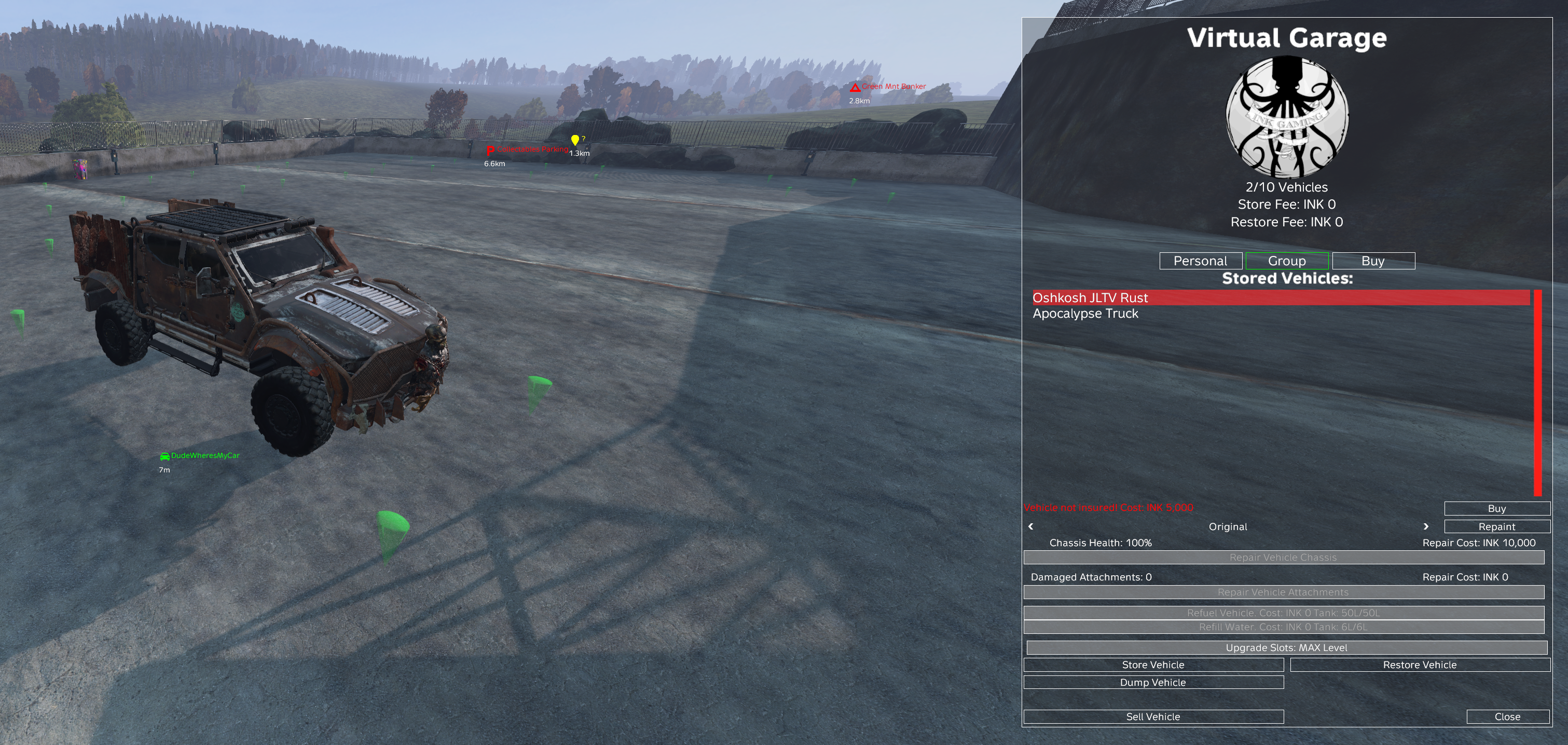
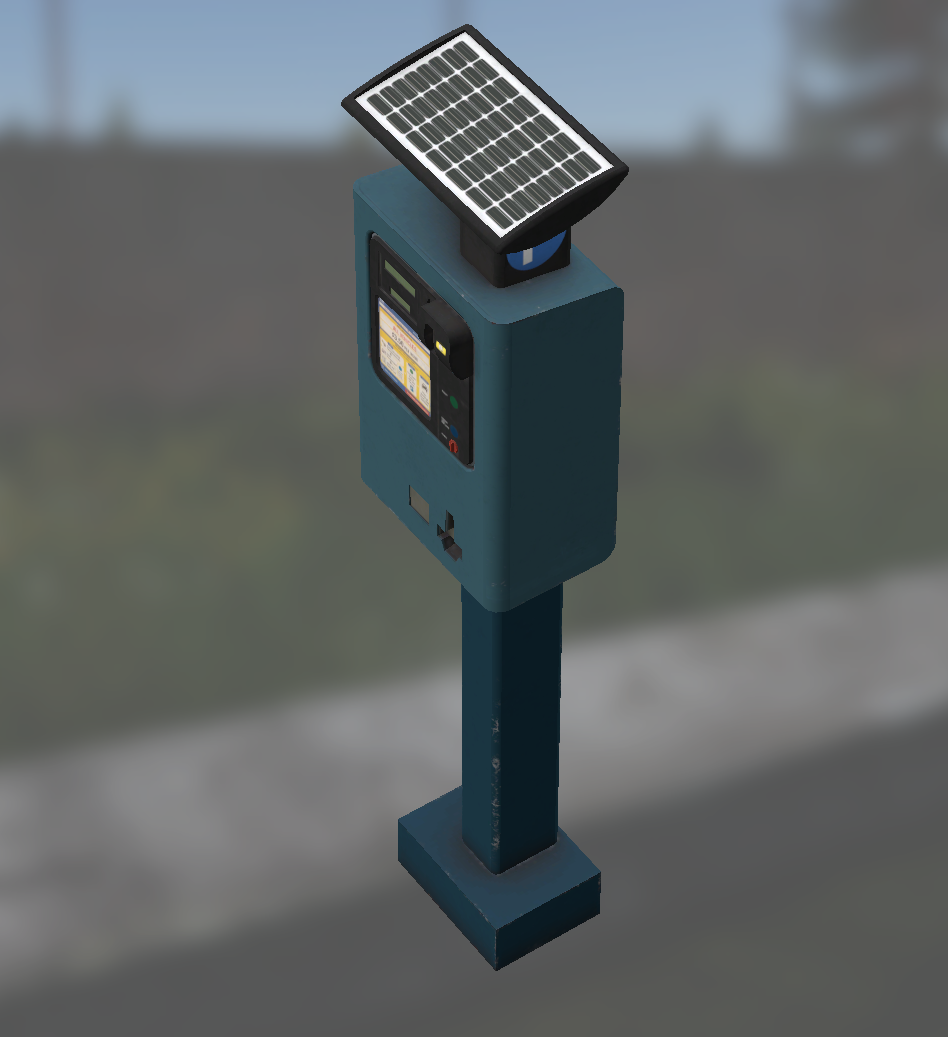
- Stand in front of a Virtual Garage pedestal found around the map or placed at your base and press F to open the Virtual Garage.
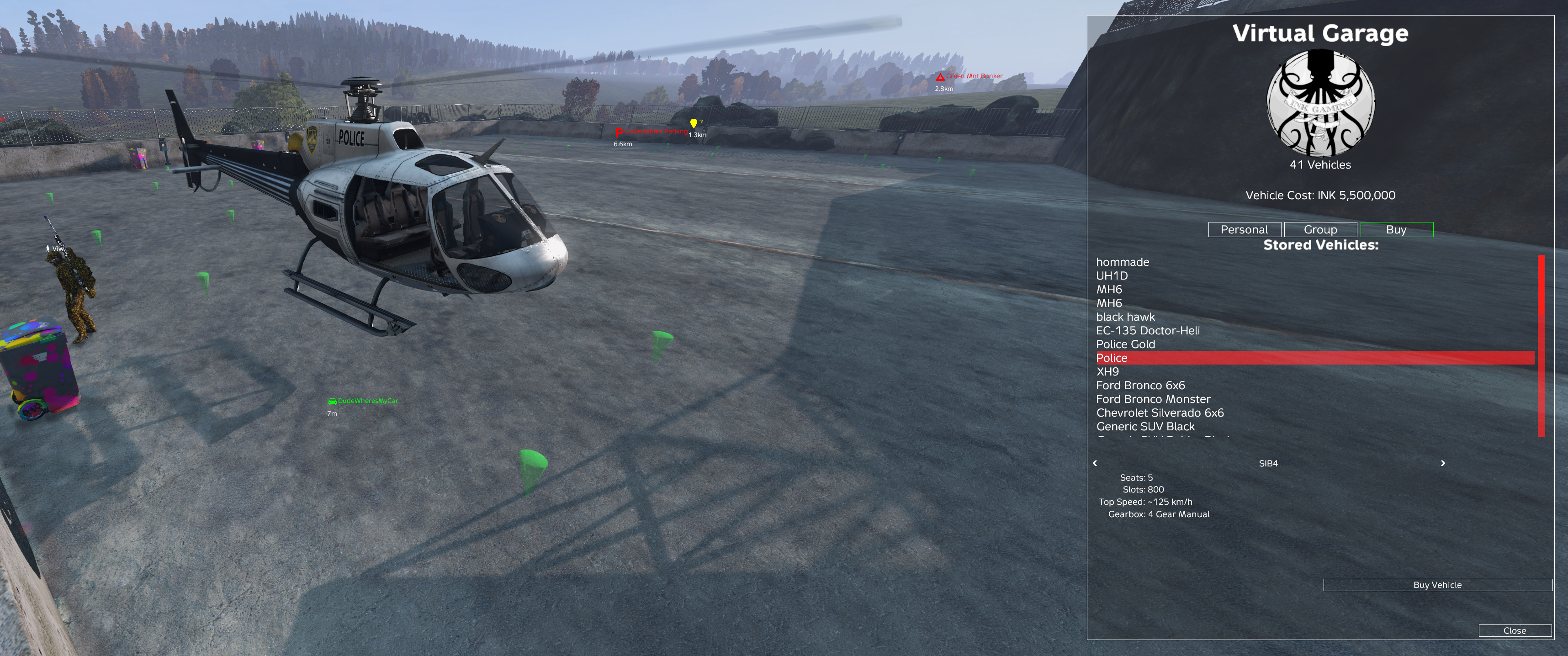
- Choose Buy to switch from stored vehicles to the purchase list.
- Scroll through available vehicles with the up and down arrows or mouse wheel.
- Use the left and right arrows to cycle available options for the selected vehicle.
- Choose Buy Vehicle when you are ready to purchase.
- Confirm the warning screen by choosing Buy. Your bank account needs enough INK for the full cost.
- After purchase, the menu returns to Personal Garage with the new vehicle stored in your inventory.
- A CarLock item is included with the purchase and must be applied before the lock takes effect.
Insurance
- Select the stored vehicle in the Virtual Garage list.
- Choose Buy to pay the INK 5,000 insurance cost.
- Verify insurance with the indicator in the lower left of the Virtual Garage menu.
- Green: Vehicle is insured.
- Red: Vehicle is not insured. Cost: INK 5,000.
Impound and recovery
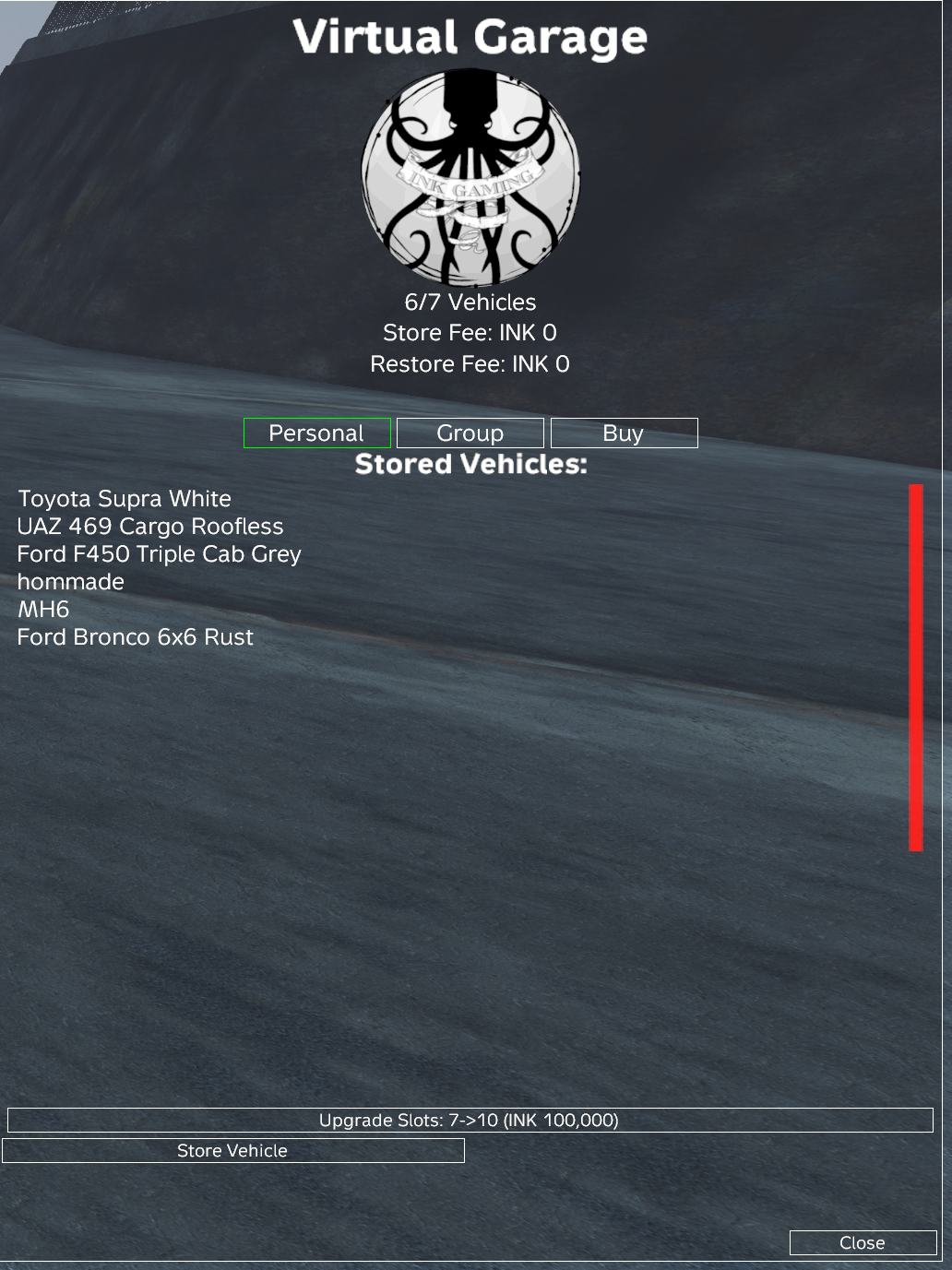
- Impound Lot is the Virtual Garage recovery system for destroyed vehicles or vehicles left out unattended too long.
- The impounded vehicle appears in the Virtual Garage Personal area of the original purchaser.
- If a vehicle is impounded by admin action or an automated time limit, the release cost appears when that vehicle is selected.
- If a vehicle is impounded because it was destroyed, use the garage insurance claim flow when coverage is available.